
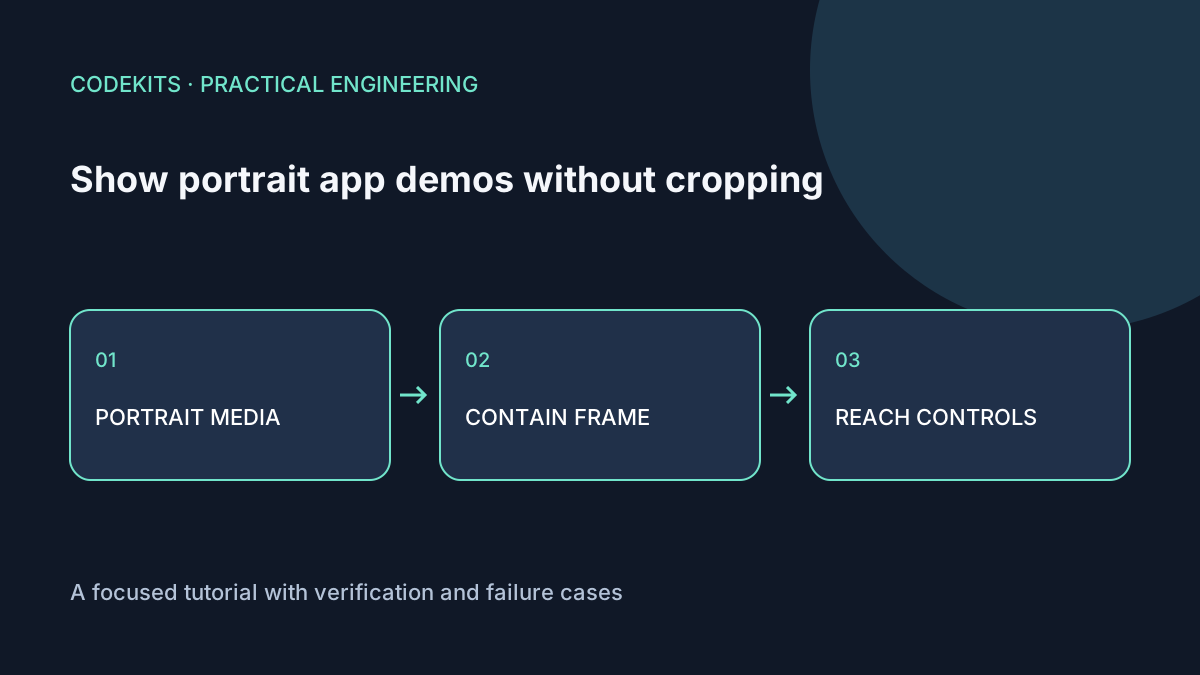
A portrait app recording should show the complete screen. Filling a wide promotional card with object-fit: cover can cut away the navigation bar, keyboard or button the demonstration is meant to explain. Use a bounded frame with contain, and accept the surrounding space.
This tutorial builds a modal viewer for a short, silent, synthetic app demonstration. The download generates animated shapes and labels in a canvas and feeds them to a video element; it contains no captured messages, accounts or customer information. It demonstrates layout, not video encoding or downloadable playback.
Separate the frame from the media
A responsive dialog needs a maximum height as well as a maximum width. Leave space for its heading and close button instead of letting the recording take the entire viewport.
<button id="open-demo" type="button">View app demo</button>
<dialog id="demo" aria-labelledby="demo-title">
  <h2 id="demo-title">Synthetic task-list demonstration</h2>
  <video controls playsinline preload="metadata"
         aria-label="Silent synthetic task-list animation"></video>
  <p>No account or personal data appears in this example.</p>
  <form method="dialog"><button>Close demo</button></form>
</dialog>
For an actual file, add a source in a codec your supported browsers can decode and provide captions when speech or meaningful audio is present. For a silent interaction, provide a text description of the important action rather than assuming the moving picture tells every reader enough.
dialog {
  width: min(92vw, 34rem);
  max-height: calc(100dvh - 2rem);
  overflow-y: auto;
  padding: 1rem;
  box-sizing: border-box;
}
dialog::backdrop { background: rgb(0 0 0 / .75); }
video {
  display: block;
  width: 100%;
  height: min(65dvh, 42rem);
  object-fit: contain;
  background: #0b1020;
}
@supports (padding: env(safe-area-inset-bottom)) {
  dialog {
    padding-bottom: max(1rem, env(safe-area-inset-bottom));
  }
}
The allocated video box may be wider than the recording. That letterboxing is intentional. MDN's object-fit reference distinguishes fitting the entire object from filling and cropping the box.
Use the dialog's actual lifecycle
Open the dialog with showModal(), not by toggling its open attribute if you need modal behaviour. A native modal handles the top layer and makes the surrounding page inert. Give it a close button even when Escape is available.
const dialog = document.querySelector("#demo");
const video = dialog.querySelector("video");
document.querySelector("#open-demo").addEventListener("click", () => {
  dialog.showModal();
});
dialog.addEventListener("close", () => {
  video.pause();
});
Do not automatically resume playback on every rerender or resize. For a file-backed recording, leaving the element mounted can preserve its time when the dialog closes; decide whether reopening should resume at that point or deliberately restart. Explain that decision in the interface.
The dialog documentation details focus and dismissal. In React, pair open/close effects with cleanup and keep the element's identity stable. See the video restart diagnostic.
Understand the synthetic fixture
The example uses canvas.captureStream() to supply generated frames to video.srcObject. It starts only after a button click, stops its tracks when closed and shows a fallback if the API is unavailable. Because this is a live stream, seeking and duration controls differ from a recorded MP4. That limitation is deliberate and documented in its README.
The canvas has a tall aspect ratio, a visible border and labelled top and bottom controls. If any of those disappear, the layout is cropping. No external media or withdrawn recording is included.
Verify on small and large displays
Test portrait and landscape phones, a short laptop viewport and 200% zoom. Reach the close button by Tab and confirm focus returns to the opener. Drag the video timeline when using a real file; native controls should not sit behind another overlay. Test safe-area devices and browser toolbar expansion.
Automated checks cover the fixture's generated-media lifecycle and static structure, not physical-device safe areas, codec support or assistive-technology behaviour. Those need a browser/device test of the final asset.
For a polished product presentation integrated with an application, see Next.js web application development.