
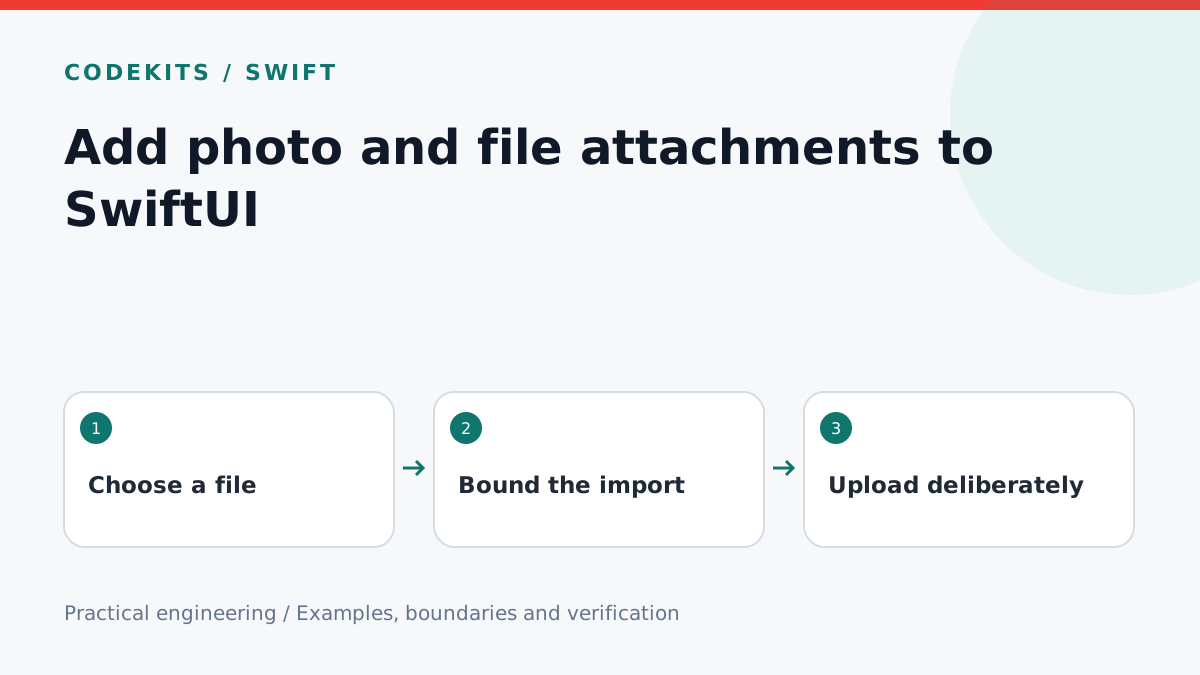
Selecting an attachment is not the same as having its bytes ready. A photo may still be in iCloud, and a document URL may require temporary security-scoped access. Treat selection, staging and upload as separate states so the interface can explain failures without losing the draft message.
This tutorial targets iOS 16 or later with SwiftUI, PhotosUI and UniformTypeIdentifiers. It gives bounded integration excerpts for a small attachment composer, not a complete messaging app. The local toolchain can type-check Swift APIs; provider permissions, iCloud downloads and device memory behaviour require a signed app and real-device tests.
Use the picker that matches the source
Use PhotosPicker for user-selected photos and fileImporter for documents. A system photo picker avoids requesting broad library access just to select an image. Apple's Photos picker sample also explains that the selected item is initially a placeholder and loading can fail.
import SwiftUI
import PhotosUI
import UniformTypeIdentifiers

struct AttachmentPicker: View {
    @State private var photo: PhotosPickerItem?
    @State private var showFiles = false
    let selectedPhoto: (PhotosPickerItem) -> Void
    let selectedFile: (Result<URL, Error>) -> Void

    var body: some View {
        HStack {
            PhotosPicker("Photo", selection: $photo, matching: .images)
            Button("File") { showFiles = true }
        }
        .onChange(of: photo) { item in
            if let item { selectedPhoto(item) }
        }
        .fileImporter(isPresented: $showFiles,
                      allowedContentTypes: [.pdf, .plainText]) { result in
            selectedFile(result)
        }
    }
}
The callbacks deliberately hand work to a model rather than loading files in the view body. Keep a selection generation ID or cancellable task in that model. If the user picks another item while the first is loading, the earlier result must not overwrite the newer selection.
Stage documents while access is valid
Copy documents into a private, app-owned staging directory before releasing security-scoped access. Create that directory explicitly and use generated filenames, not user filenames as filesystem paths. Keep the display filename separately.
import Foundation

func stageDocument(from source: URL, into directory: URL) throws -> URL {
    guard source.startAccessingSecurityScopedResource() else {
        throw CocoaError(.fileReadNoPermission)
    }
    defer { source.stopAccessingSecurityScopedResource() }
    let values = try source.resourceValues(forKeys: [.isRegularFileKey, .fileSizeKey])
    guard values.isRegularFile == true, let size = values.fileSize,
          size <= 5 * 1024 * 1024 else { throw CocoaError(.fileReadTooLarge) }
    let destination = directory.appendingPathComponent(UUID().uuidString)
    try FileManager.default.copyItem(at: source, to: destination)
    return destination
}
This minimal helper is for a trusted picker URL and a small-file policy. File metadata can change, so a production staging adapter should coordinate provider reads, enforce the byte limit during copying, check the final stored size, and clean up partial copies on failure. Move blocking file operations off the main actor. Apple's file importer contract describes security-scoped URLs.
Load photos without accidental memory spikes
For small images, loadTransferable(type: Data.self) is convenient, but checking its size after loading is not a hard peak-memory limit. For large assets use a custom Transferable with FileRepresentation and copy the provided temporary file into staging while it is available. Keep only a downsampled thumbnail in view state.
Decide whether to preserve original formats or transcode. A chosen image may be HEIC, not JPEG. If the server accepts only JPEG, convert deliberately and label the resulting media type correctly. Consider metadata removal for location privacy. Client filtering improves UX; the server must still validate type, size, ownership and content.
Test selection independently from upload
Cancel each picker: the existing draft should remain unchanged. Select an iCloud-only asset while offline: show a retryable load failure. Select an unsupported document or oversized file: explain the policy before uploading. Pick A, then B quickly: B must remain selected even if A finishes last.
Test deleting a staged attachment while no upload is running, and deleting one during an upload. Coordinate ownership so cleanup cannot remove a file still being read. On app restart, reconcile abandoned staging files against persisted draft and transfer records rather than deleting the entire staging directory.
Troubleshooting and next steps
Permission errors usually mean the provider URL was used after scoped access ended. Empty previews can mean the photo has not loaded yet. Crashes with large photos often indicate full-resolution decoding on the main actor.
Continue with large iOS uploads. For a complete native attachment workflow, see CodeKits Swift iOS development.