
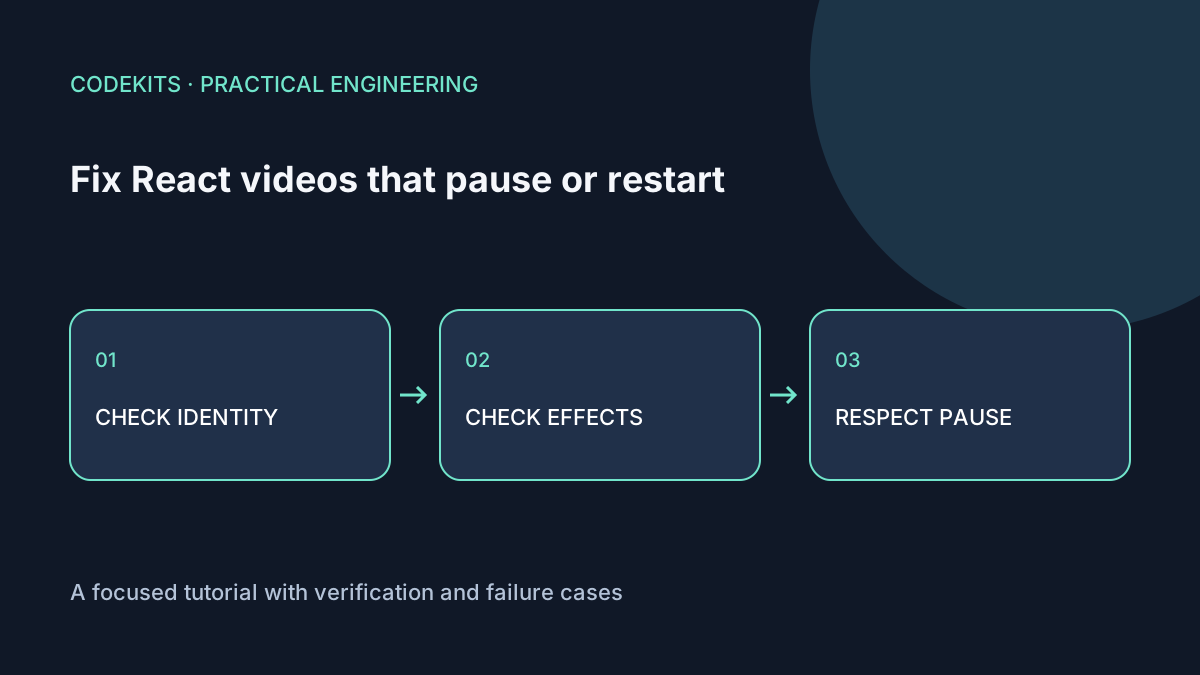
A video that restarts whenever a counter changes usually has an identity problem, not a buffering problem. A video that resumes after the viewer presses Pause usually has competing playback logic. Diagnose those separately before adding retries or more effects.
The examples target React 19 and the browser's native video element. They are integration snippets for an existing React project, not a tested streaming player. Use a fresh, non-sensitive clip you own; no private messenger recording is needed to reproduce either failure.
Find out whether the element is being replaced
Open DevTools and select the video node. Trigger the unrelated UI update. If that node disappears and a new one appears, inspect keys, conditional branches and component definitions.
type Props = { src: string; caption: string };

export function VideoCard({ src, caption }: Props) {
  return (
    <figure>
      <video src={src} controls playsInline preload="metadata" />
      <figcaption>{caption}</figcaption>
    </figure>
  );
}
Define this component at module scope. Do not define it inside a parent's render function, use key={Date.now()}, or key it by an unrelated theme or counter. A stable key based on the actual media ID is appropriate for a list. Changing that ID should reset the player because the content really changed.
React's state-preservation guide explains the role of tree position and identity. Preserving the React position helps preserve the underlying media node, but changing src still instructs the browser to load a different resource.
Remove accidental reloads
Search your player code for load(), assignments to src, currentTime = 0, and effects that depend on frequently changing objects. A newly created options object is a new dependency even if its contents look unchanged.
Prefer a stable source URL. Do not append a new timestamp cache-buster on every render. If an authenticated media URL expires, refresh it through an explicit recovery path and decide whether restoring time is possible; a different resource or unsupported seeking can make that inappropriate.
To observe events temporarily:
const video = document.querySelector("video");
for (const name of ["loadstart", "emptied", "play", "pause", "error"]) {
  video?.addEventListener(name, () => {
    console.log(name, video.currentTime, video.readyState);
  });
}
Reload after debugging to remove these temporary listeners. Do not send signed media URLs, user identifiers or private captions to analytics.
Give playback one owner
For a demonstration clip, native controls often require no playback effect at all. If the viewer pauses, leave it paused. An interval that calls play() repeatedly is not resilience; it overrides their decision.
If a custom Play button is genuinely required, handle the asynchronous result:
async function requestPlayback() {
  const video = videoRef.current;
  if (!video) return;
  try {
    await video.play();
    setMessage("");
  } catch {
    setMessage("Playback could not start. Try the video controls.");
  }
}
The ref and status state belong to the surrounding component. Do not announce "Playing" before the promise succeeds. MDN's play() documentation describes rejection, including autoplay restrictions.
If a product has a controlled playback state, update it from actual media events as well as UI actions. Distinguish a viewer pause from a policy-driven pause, such as closing a dialog. React's effects guide shows synchronization with browser media, but an application must still define who owns the desired state.
Test the failure, not just initial playback
Start a clip, seek halfway through, then update an unrelated counter, change theme and resize the window. The element and current position should remain intact. Pause with native controls and wait longer than any former timer interval. It must stay paused.
Next change the actual selected clip: a reset is now expected. Test a missing URL, unsupported codec and slow connection. A stalled network request is different from a remount and should have a different diagnosis.
These snippets were source-reviewed against React and browser APIs; they are not a claim of tested playback on every browser or device. For layout rather than lifecycle issues, use portrait demos without cropping. For a player integrated into a larger interface, see React application development.