
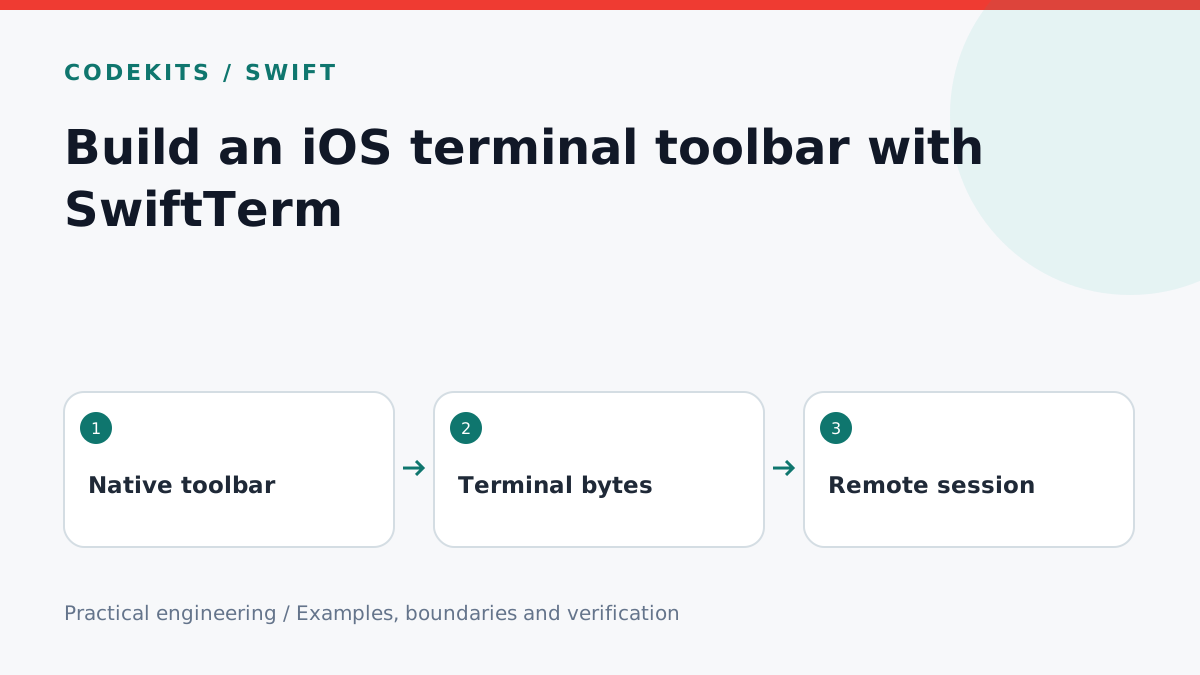
The iPhone keyboard lacks several keys that terminal programs expect. A small toolbar can provide Esc, Tab, Ctrl and arrows, but those buttons must send input to the terminal's transport—not paint characters into its output buffer. This tutorial shows a SwiftUI toolbar around an existing SwiftTerm terminal view.
It assumes you already have a working UIKit TerminalView bridged into SwiftUI and an authorised SSH transport. The adapter below was checked against SwiftTerm's public source during authoring. SwiftTerm's main documentation currently describes its 2.0 API, while older applications may use 1.x; pin and inspect your package version before adopting it. The full SwiftTerm application and device keyboard interactions were not built or exercised here.
Keep input and output separate
Received SSH bytes are fed into the terminal emulator for rendering. User input travels in the opposite direction, through the terminal delegate to the SSH channel. SwiftTerm is a terminal emulator, not an SSH connection manager; its repository guide describes that separation.
Do not implement a button by appending escape sequences to a SwiftUI text label or by feeding them back as server output. The terminal may react visually, but the remote process will never receive the intended key.
Build a compact toolbar
import SwiftUI
import SwiftTerm

struct TerminalToolbar: View {
    let terminal: TerminalView

    var body: some View {
        ScrollView(.horizontal, showsIndicators: false) {
            HStack(spacing: 8) {
                Button("Esc") { terminal.send(txt: "\u{1B}") }
                Button("Tab") { terminal.send(txt: "\t") }
                Button("Ctrl + next key") { terminal.controlModifier = true }
                Button("↑") { terminal.sendKeyUp() }
                    .accessibilityLabel("Up arrow")
                Button("↓") { terminal.sendKeyDown() }
                    .accessibilityLabel("Down arrow")
                Button("←") { terminal.sendKeyLeft() }
                    .accessibilityLabel("Left arrow")
                Button("→") { terminal.sendKeyRight() }
                    .accessibilityLabel("Right arrow")
            }
            .buttonStyle(.bordered)
            .padding(.horizontal)
        }
    }
}
SwiftTerm exposes these send and arrow methods in its shared Apple view implementation. Using its arrow methods lets the library account for terminal cursor mode instead of assuming every program wants the same escape sequence. Esc and Tab are explicit ASCII control input here; newer keyboard protocols may require additional integration for more complex keys.
controlModifier is a one-shot modifier in the inspected iOS implementation. It is consumed by subsequent keyboard input; do not send the literal characters ^C when the user intends Ctrl-C. A polished application should visibly show the armed state and track SwiftTerm's modifier-reset notification where supported. It should also offer a way to cancel an armed modifier before typing.
Preserve focus and layout
Keep the same terminal instance across SwiftUI updates. Recreating it when toolbar state changes can clear scrollback or disrupt delegate wiring. Attach the toolbar through a safe-area inset or keyboard accessory arrangement that matches your existing bridge, and restore first-responder focus where necessary after button activation.
Give controls generous touch targets and descriptive accessibility labels. Horizontal scrolling can preserve reachability on narrow screens, but essential keys must remain discoverable with VoiceOver and large text. Test a hardware keyboard too: the toolbar must supplement, not intercept or duplicate, physical key events.
When the keyboard or toolbar changes the available terminal area, let the terminal calculate its new rows and columns. Forward the resize callback to the SSH pseudo-terminal. Sending stale dimensions leaves full-screen applications drawing for the wrong screen size; changing a SwiftUI frame alone is insufficient.
Test bytes and remote behaviour
First replace the SSH writer with a byte recorder. Esc should produce byte 27 and Tab byte 9. Verify Ctrl-C through the keyboard path produces the expected control input rather than printable text. Test arrow behaviour in normal and application cursor modes with a terminal test fixture.
Then use a disposable test server to try a shell prompt and a full-screen editor. Rotate the device, show and hide the keyboard, change text size and test selection. Ensure a button press sends one event, not two. Never test destructive shell commands merely to see whether Ctrl works.
Troubleshooting and next steps
If keys appear locally but the remote prompt does not react, inspect the input/output boundary and delegate wiring. If arrows print characters, inspect mode handling and transport encoding. If the terminal jumps or clears, inspect view identity and recreation.
Continue with SSH reconnection after backgrounding. For native terminal UI and connection management, explore CodeKits Swift iOS development.