
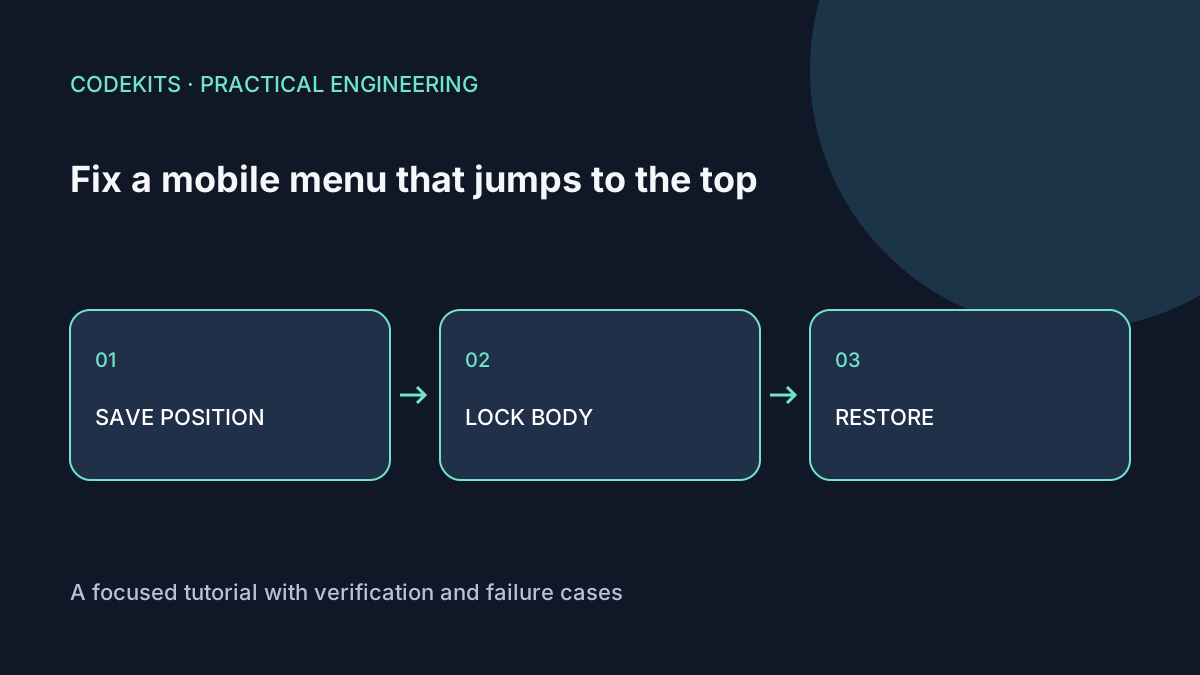
A menu can look correct at the top of a page and still be broken halfway down it. Setting the body to position: fixed removes its normal scrolling position; closing it without restoring that position sends the reader back to the beginning. The fix is to treat opening and closing as a reversible operation.
This tutorial targets a single modal navigation overlay in a React 19 application. The downloadable browser example uses the same scroll-lock function without requiring React. It is a fresh demonstration, not an extract from a production menu.
Reproduce the failure first
Create enough page content to scroll several screens. Scroll down, open the menu, close it, and note both window.scrollY values. Also check whether an anchor such as href="#" is being used as the menu trigger: that is navigation, not a button, and can independently cause a jump.
Use a real button with type="button", an accessible name, aria-expanded, and aria-controls. For modal navigation, a native dialog can provide focus containment and Escape handling. Scroll locking does not replace those behaviours. MDN describes the dialog's modal and focus behaviour.
Save exactly what you change
Capture inline styles rather than assuming the body originally had no styles. Return an unlock function so cleanup remains paired with acquisition.
export function lockBody() {
  const body = document.body;
  const root = document.documentElement;
  const y = window.scrollY;
  const keys = ["position", "top", "left", "right", "overflow"];
  const before = Object.fromEntries(keys.map(key => [key, body.style[key]]));
  Object.assign(body.style, {
    position: "fixed", top: `-${y}px`,
    left: "0", right: "0", overflow: "hidden"
  });
  let released = false;
  return () => {
    if (released) return;
    released = true;
    const previousBehaviour = root.style.scrollBehavior;
    root.style.scrollBehavior = "auto";
    Object.assign(body.style, before);
    window.scrollTo(0, y);
    root.style.scrollBehavior = previousBehaviour;
  };
}
The negative top offset keeps the visible content in place while the body is fixed. Temporarily disabling smooth scrolling avoids an animated journey back to the saved location. The guard makes repeated cleanup harmless. This implementation assumes only one overlay owns the lock; nested dialogs need a shared reference-counted manager, not two independent saved positions.
If your layout shifts sideways when its scrollbar disappears, reserve space with scrollbar-gutter: stable on the root and test it on your supported browsers. Do not compensate with a hard-coded scrollbar width.
Pair the lock with React's lifecycle
"use client";
import { useEffect } from "react";
import { lockBody } from "./scroll-lock";

export function useMenuScrollLock(open: boolean) {
  useEffect(() => {
    if (!open) return;
    return lockBody();
  }, [open]);
}
The cleanup runs when the menu closes or its component unmounts. Development Strict Mode intentionally exercises effect setup and cleanup; avoid "run once" flags that hide broken cleanup. React's effect lifecycle guide explains why each setup should be independently reversible.
Make the menu panel scrollable using max-height: 100dvh; overflow-y: auto. Otherwise a short phone or enlarged text can put the final link off-screen while the page behind it is locked. On route selection, close and release the menu before allowing the router to choose the destination's scroll position; restoring an old position after navigation can create a second, different bug.
Verify the result
The download contains index.html, scroll-lock.js, a README and a Node test. Serve the folder over localhost, then test these cases:
- Close with the button and Escape after scrolling to several different positions.
- Open twice in succession; the second close must not inherit the first saved position.
- Tab through the modal and confirm focus returns to the opener.
- Rotate a phone, increase text size, and reach the last menu item.
- Navigate to another page; its intended scroll position must win.
The function has automated mock-DOM tests for restoration and repeated cleanup. Those tests do not establish iPhone keyboard or browser-toolbar behaviour; verify those on the devices you support.
Troubleshooting and next steps
If the page still jumps, inspect changing React keys, auto-focused inputs, anchor hashes and route effects. If it remains locked after navigation, an exit path is skipping cleanup. Keep the original failing reproduction until the fix passes.
Continue with reachable mobile navigation. For an application-wide navigation and accessibility pass, see React web application development.