
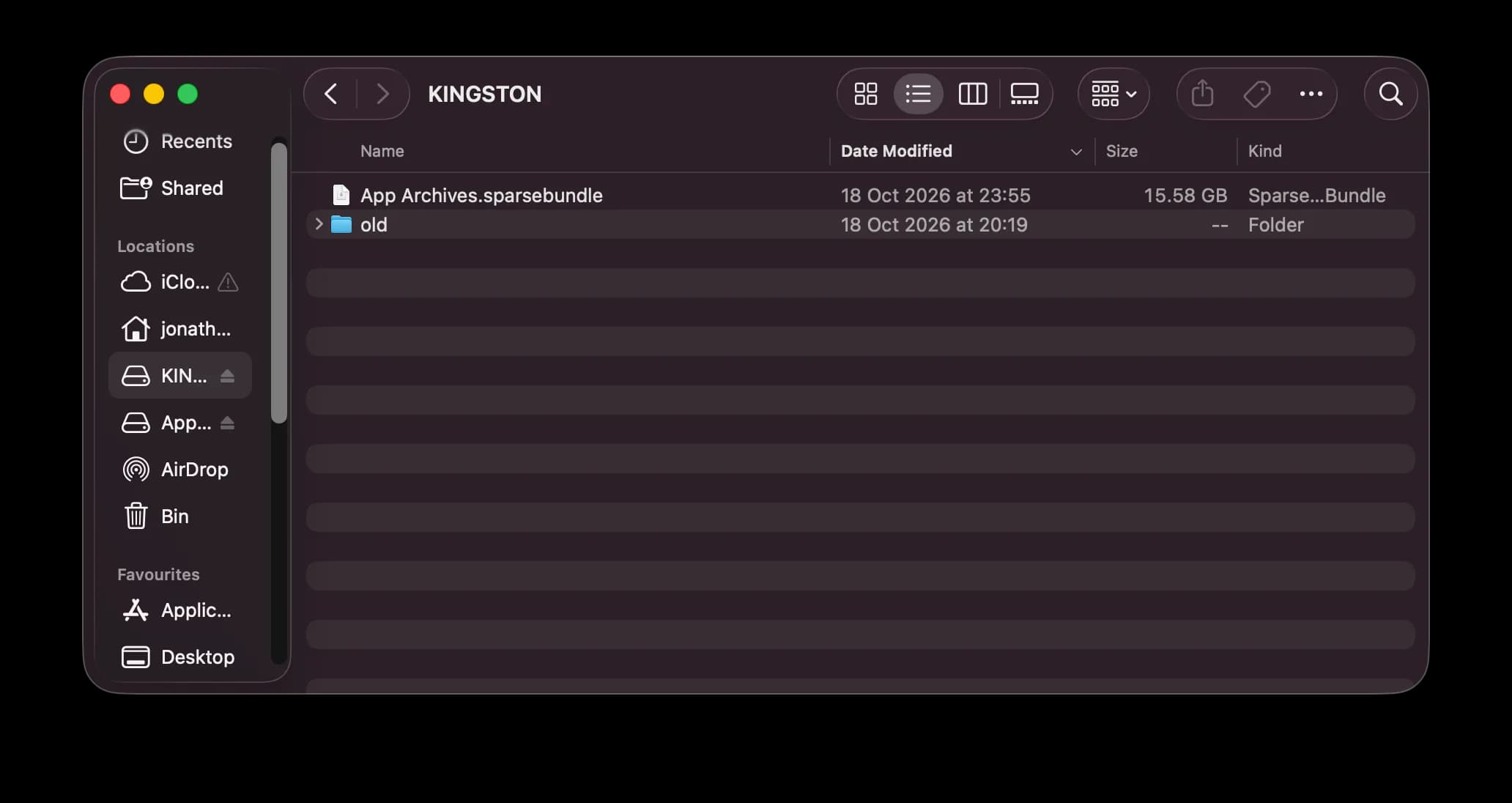
Old installers and earlier builds of an app are worth keeping, and they can live on a USB drive instead of sitting in the open on your Mac. This tutorial uses Disk Utility to create a password-protected folder on the drive, then stores those archives inside it.
You need a Mac and a USB drive with free space. Many Kingston sticks are formatted as ExFAT, and that is fine. The encrypted folder is a file you add to the drive. The stick itself stays as it is.
What you are making
You save a sparse bundle disk image on the USB drive and name it App Archives. Finder shows that file as App Archives.sparsebundle. After you enter the password, it mounts as a drive named App Archives. Drag archives into that drive, then eject App Archives to lock them.
USB drive/
└── App Archives.sparsebundle/ # Encrypted image; mounts as App Archives
Treat App Archives.sparsebundle as one package. Copy or move the whole package when you want another copy, and leave the files inside it alone.
Create the image
Open Blank Image
Open Disk Utility from Applications, Utilities, or with Spotlight. Choose File > New Image > Blank Image.
Blank Image adds a file on the USB drive. The Erase button in Disk Utility wipes a drive, so leave that alone.
Choose the settings
In the blank-image sheet, set:
- Save As: App Archives, with the USB drive chosen as the place to save it.
- Name: App Archives. This is the name of the drive you see once it mounts.
- Format: APFS.
- Encryption: 256-bit AES.
- Image Format: sparse bundle disk image.
- Size: the most space the archives will ever need. 100 GB is a workable example.
- Partitions: leave the default single partition.
Set the password
macOS asks for a password and a confirmation. Choose one you can remember, or keep it in a password manager. If a hint field is offered, keep the password itself out of the hint. A lost password cannot be recovered from the image.
Disk Utility then creates the image and mounts it as a drive named App Archives.
Store archives and lock them
Open the App Archives drive in Finder. Drag in the old app versions: zip files, installers or disk images. While that drive is mounted, the files are available on that Mac like any other folder.
When you have finished, eject App Archives. Ejecting unmounts the image and locks the archives. App Archives.sparsebundle stays on the USB drive. Eject the USB drive as well before you unplug it.
Open it again
Connect the USB drive. Double-click App Archives.sparsebundle and enter the password. The App Archives drive mounts again. Eject App Archives when you are finished, so the archives are locked before the stick goes back in a drawer.
How the size works
A sparse bundle grows as you add files, up to the size you chose when you created it. In the 100 GB example, the bundle does not take 100 GB on the stick straight away.
The USB drive still needs free space for the files you add. Copying stops when the stick is full, even if the size you chose was larger. Use a larger drive, or remove something else from the stick, when you need more room than it has free.
An ExFAT stick, including a typical Kingston drive, can hold the bundle. The APFS format applies to the image, so the stick can keep its current format. The image opens on a Mac.
What the encryption covers
AES-256 protects the archives at rest on the USB drive once App Archives is ejected. Reading them requires the password.
Keep a separate backup of anything you cannot replace. A lost stick or a forgotten password takes these copies with it. An app that is already installed on a computer stays on that computer, outside this image.
Next steps
Add later versions the same way: double-click App Archives.sparsebundle, copy the new archive in, and eject App Archives.
If the current version of the app still needs building or looking after, CodeKits development services can help with that.